What RigWave detected or measured.
← ALL FEATURESV1 target • exact Windows proof pending
Full System Scan: check your streaming setup
Check supported Windows components, drivers, devices, audio routes, apps and PC resources before you stream.
Scope boundary: “Full System” means the supported streaming chain. It does not mean antivirus, malware removal, registry cleaning, junk deletion or a generic whole-PC health service. Security checks around the RigWave release remain a separate trust gate.
What you get
RigWave checks the supported parts that can affect a stream as one chain: Windows, PC resources, audio devices and drivers, DJ software, streaming software, versions, routing and monitoring.
Why it matters before showtime
Check for problems before going live. A wrong device, changed driver, sample-rate mismatch, route or resource squeeze can wreck a perfectly prepared set. Finding the weak link early beats discovering it when the audience already has.
Find setup problems before your stream starts. Review the findings before making changes.
How the intended workflow works
- Run the scan.
- RigWave checks the detected chain.
- Review findings in plain English.
- Approve supported next steps only if you want them.
WHAT A RESULT SHOULD TELL YOU
Found → Changed → Result → Next action
A scan is useful only if you can tell what RigWave actually knows and what still needs you.
What changed, if anything. “No change recommended” can be a good result.
What the evidence says now.
The one useful thing to do next, or “nothing needed”.
REVIEW means there is not enough evidence to treat an answer as confirmed. RigWave should ask rather than guess.
See the scan before the fix
Current RigWave test screens show setup detection and findings before supported changes. Final V1 proof will come from the exact Windows version.
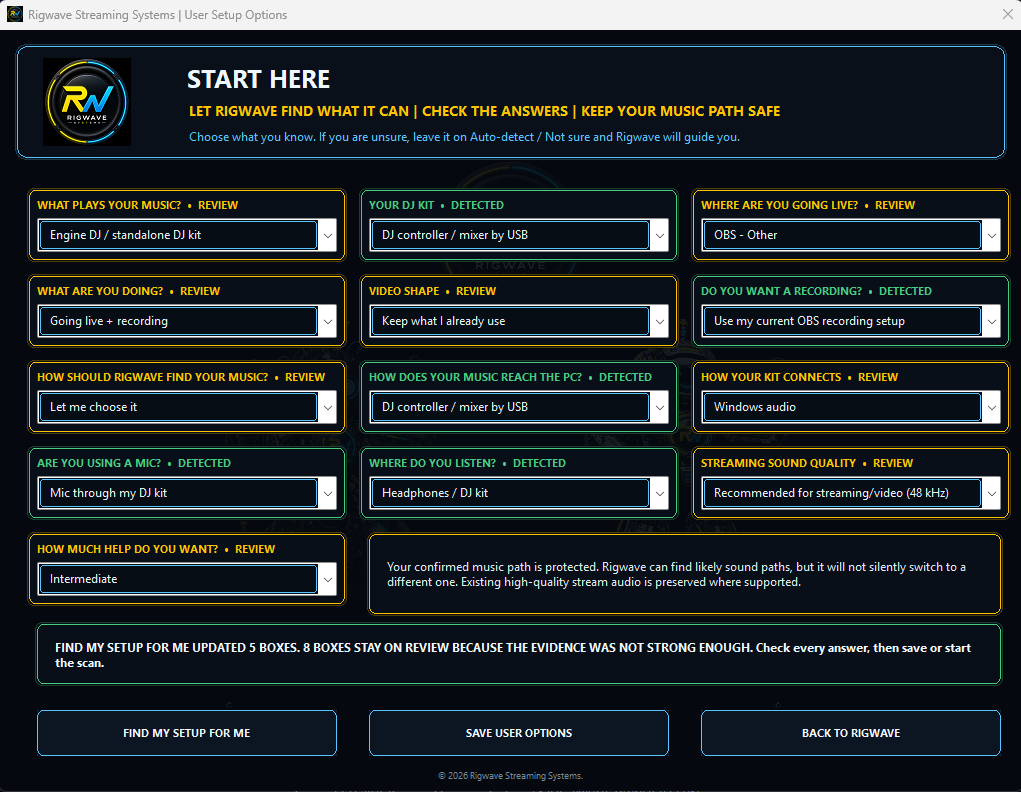
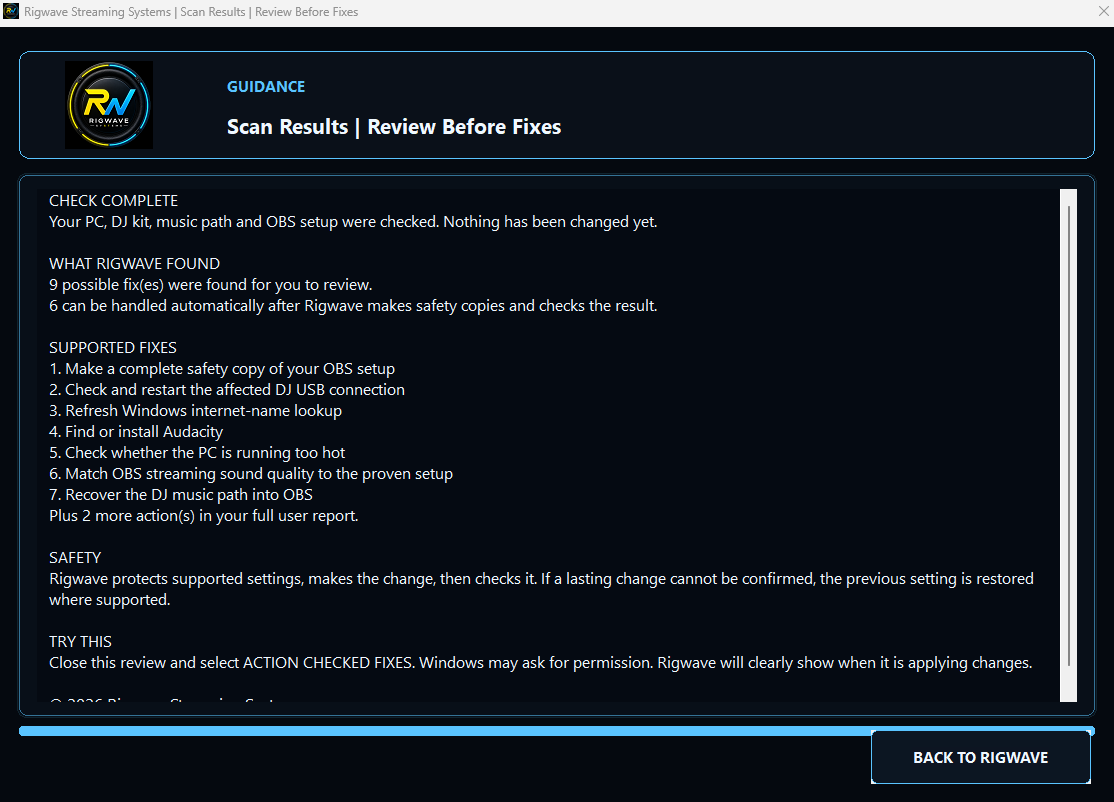
Scan results: findings are shown before supported changes are made.
Top tips
- Run it after a meaningful hardware, driver or routing change.
- Read the findings before applying anything.
- Treat a real listen and meter check as the final showtime check.
DIAGNOSE BEFORE CHANGING
Find the real fault. Keep the safe path visible.
Explore scanning, audio routing and troubleshooting. Finding a problem is the first step; any supported fix still needs to be checked.