Performance Guard: make the most of the machine you actually own
Keep PC resources available for your live stream. RigWave is designed to adjust its own supported work to the resources your machine has available.
What you get
RigWave uses detected PC resources and streaming-app activity to scale supported work and recommendations. If the machine is tight on headroom, it can stage heavier scans, reduce avoidable background work and back itself off rather than fighting OBS or another live app for the same resources.
Why it matters while you are live
A stream that looks brilliant for thirty seconds and then stutters is not a win. Performance Guard is about spending the machine’s power where the audience can feel it: on the show. When resources are limited, non-essential RigWave work can be deferred.
How the intended workflow works
- Pre-flight check for CPU, GPU, memory, disk pressure and active streaming apps where supported.
- Choose normal or lightweight/staged work for the detected machine.
- Avoid unnecessary concurrent scans while a stream is active.
- Warn before a task likely to compete with OBS or TikTok Live Studio.
- Pause or defer non-essential work when that protects streaming headroom.
- Never relaunch a third-party app into a crash loop.
- Explain any quality compromise and keep the user in control.
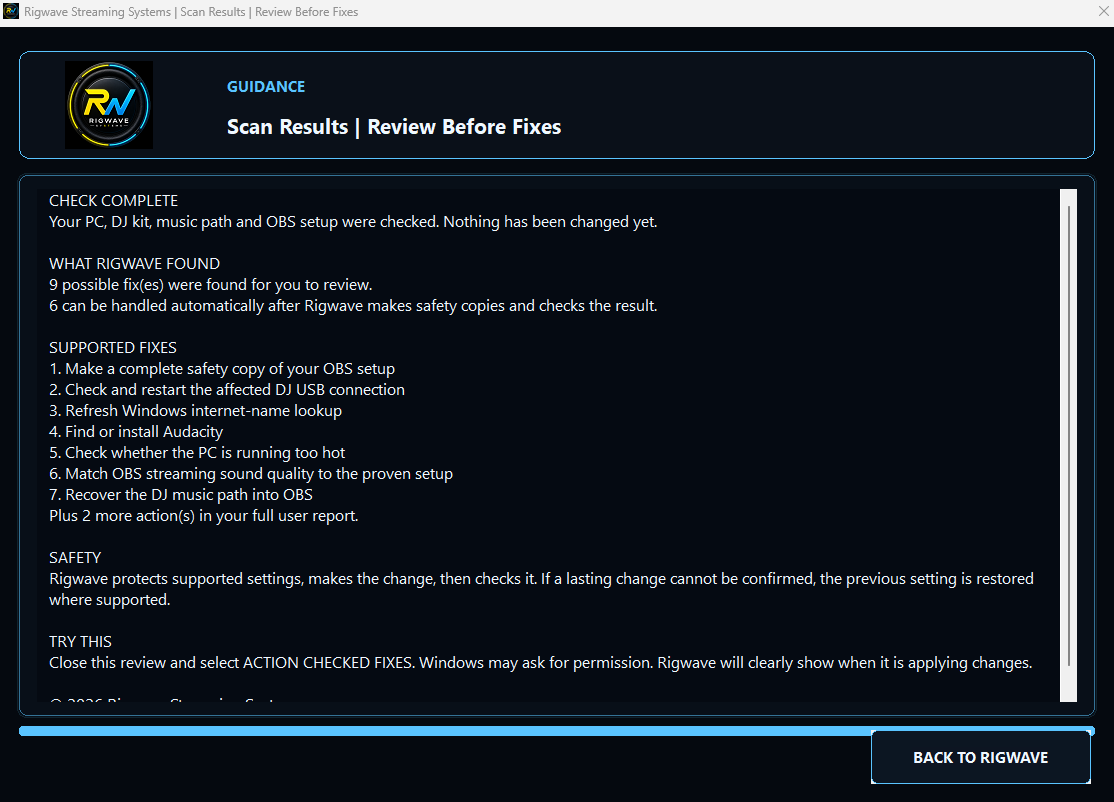
See how RigWave starts with your setup
A genuine test view of the setup-first approach. It shows the product direction without pretending the final Windows V1 proof is already complete.
Top tips
- Start with the simple view.
- Open more detail only when you need it.
- A recommendation should explain why it applies to your setup.
Evidence first, confident action second.
Explore the audio and OBS tools, then check the results on your own setup when testing becomes available.